How to Configure UDP on Xbox and PlayStation
Setting up UDP is simple and takes less than 5 minutes.
Requirements
- Xbox Series X/S or PlayStation 5
- PC or Mac on the same WiFi network
- Pit Wall Sim Racing installed on your PC/Mac
Step 1: Install Pit Wall
Download Pit Wall at app.pitwallsimracing.com and install it on your computer.
Step 2: Note the IP Address
When you open Pit Wall, it will show your computer's local IP address. Write this number down.
Step 3: Configure in the Game
- Open F1 25 on your console.
- Go to Settings > Telemetry.
- Enable UDP Telemetry: ON.
- IP Address: enter the Pit Wall IP you noted earlier.
- Port: 20777 (default).
- Send Rate: 60Hz (recommended).
Step 4: Start Racing
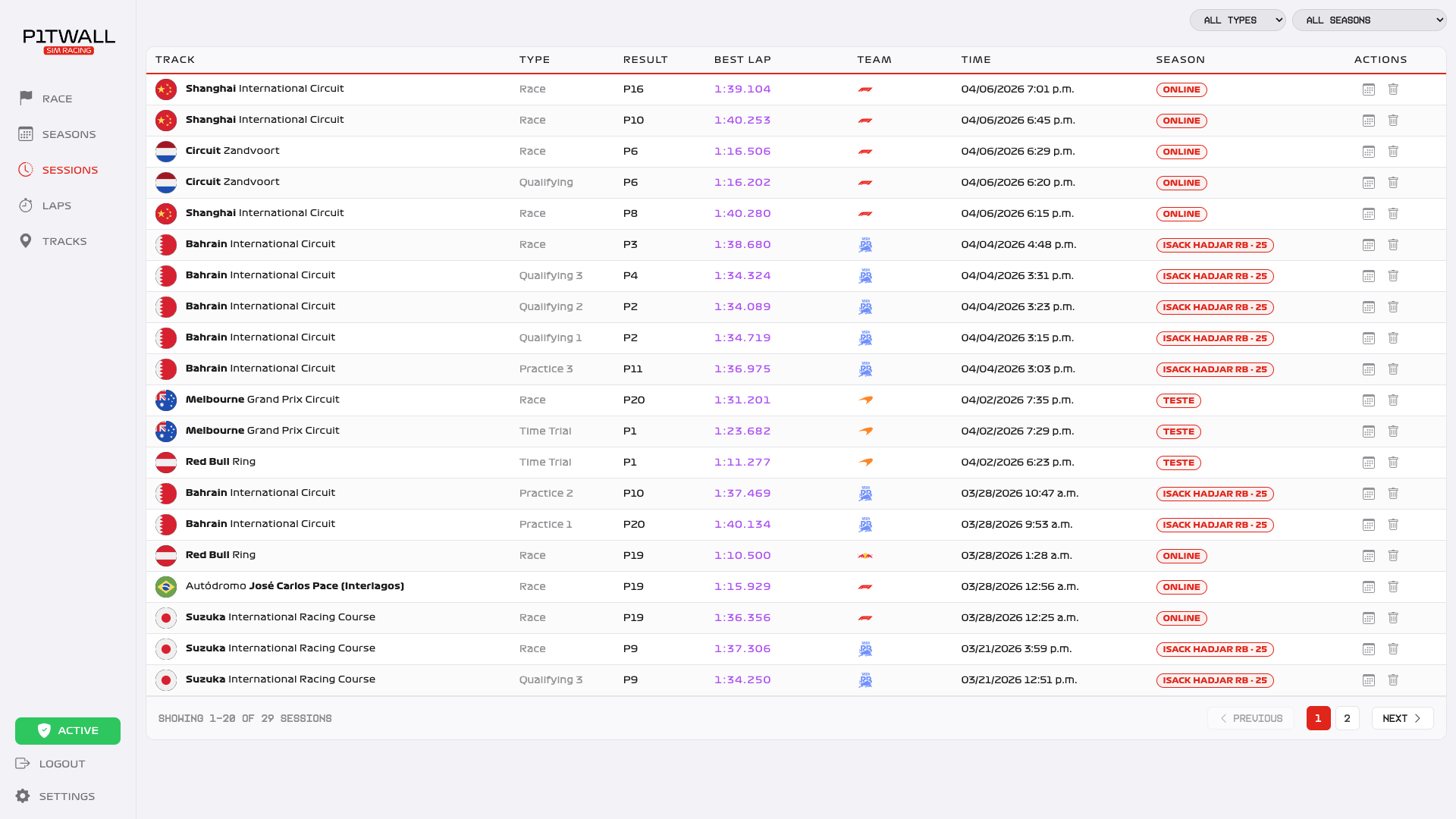
Enter any session. Pit Wall will automatically detect it and start recording.
Common Issues
- Not connecting: verify that both console and PC are on the same network.
- Intermittent data: reduce the Send Rate to 30Hz.
- Firewall: allow Pit Wall through your Windows/Mac firewall.